User roles and group permissions play a major part in the Octopus security model. These roles are assigned to Teams and they dictate what the members of those teams can do in Octopus.
Built-in user roles
Octopus comes with a set of built-in user roles that are designed to work for most common scenarios.
These core roles cannot be edited.
| User Role | Description |
|---|---|
| System Administrator | Everything at the system level, including the most sensitive server functions, like configuring web hosting, server nodes, and maintenance mode. |
| System Manager | Everything at the system level except the functions reserved for System Administrators. |
| Space Manager | Full control within a space, including projects, environments, tenants, and variables. Can’t change settings that apply to the whole instance. |
| Space Viewer | View access to every resource in a space. Can’t create, edit, delete, or run anything, or see most system-wide settings. |
| Read Only | View access to nearly every resource across the system and its spaces. Can’t create, edit, delete, or run anything. |
The rest of the built-in user roles can be edited to contain different permissions. However, we recommend keeping them as a reference and creating a new user role when you need to customize.
| User role | Description |
|---|---|
| Build Server | Publish packages and build information. Create releases, deployments, runbook snapshots, and runbook runs. Can’t edit a runbook or its steps. |
| Certificate Manager | Create, edit, and delete certificates, and export their private keys. |
| Deployment Creator | Deploy existing releases and run runbooks. Can’t create releases or edit projects. |
| Environment Manager | Create, edit, and delete environments, deployment targets, workers, accounts, proxies, and machine policies. |
| Environment Viewer | View environments, deployment targets, workers, proxies, accounts, and machine policies. Can’t edit them. |
| Feature Toggle Editor | Create, edit, and delete a project’s feature toggles. |
| Insights Report Manager | Create, edit, view, and delete Insights reports. |
| Package Publisher | Push, download, and administer packages in the built-in feed. Push and administer build information. |
| Project Viewer | View a project’s dashboard, releases, deployments, runbooks, runbook snapshots, and tenants. Restrict this role by project to limit it to a subset of projects, and by environment to limit which environments they can view deployments to. |
| Project Contributor | All Project Viewer permissions, plus: editing projects, deployment processes, variables, triggers, and runbooks, and creating runbook snapshots. Can’t create or deploy releases, or run runbooks. |
| Project Initiator | All Project Viewer permissions, plus: creating, editing, and deleting projects, and managing their Insights reports. |
| Project Deployer | All Project Contributor permissions, plus: deploying releases and running runbooks. Can’t create releases. |
| Project Lead | All Project Contributor permissions, plus: creating, editing, and deleting releases. Can’t deploy releases or run runbooks. |
| Release Creator | Create new releases and runbook snapshots. |
| Runbook Consumer | View and run a project’s runbooks. |
| Runbook Producer | View and run a project’s runbooks. Create, edit, and delete projects, runbooks, runbook snapshots, variables, and triggers. |
| Tenant Manager | Create, edit, and delete tenants and their tags. |
New versions of Octopus may add new permissions. These are not added to editable built-in user roles or to custom roles, to avoid giving users permissions they are not supposed to have. An administrator must add these new permissions to a user role manually.
To view the default permissions for each of the built-in user roles, please see default permissions.
Creating user roles
UserInvite is a highly privileged permission. Of the built-in roles, only System Administrator and System Manager include it, and that is deliberate.
Inviting a user requires UserInvite together with TeamEdit, and that combination lets you add someone to a team granting more access than you hold yourself. The only exception is that you cannot invite anyone into a team with the AdministerSystem permission unless you have it too.
Grant UserInvite only to people you trust to administer the whole Octopus installation.
A custom User Role can be created with any combination of permissions. To create a custom user role:
-
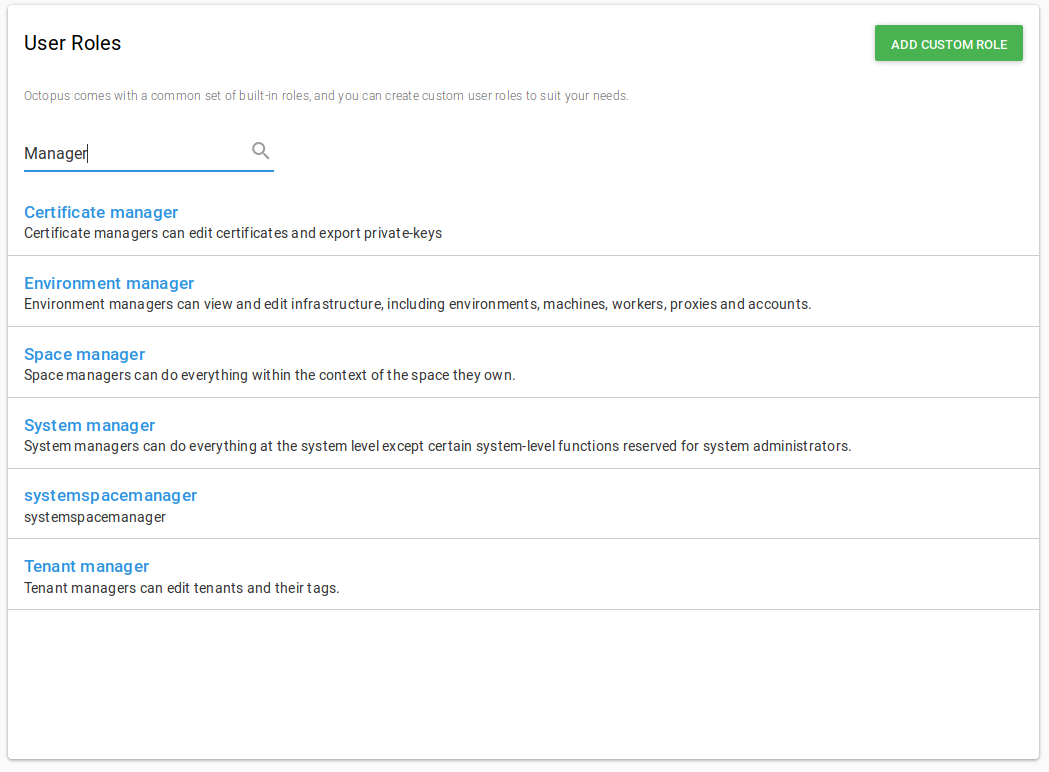
Under the Configuration page, click Roles.
-
Click Add custom role.
-
Select the set of permissions you’d like this new User Role to contain, and give the role a name and description. These can be system or space level permissions.
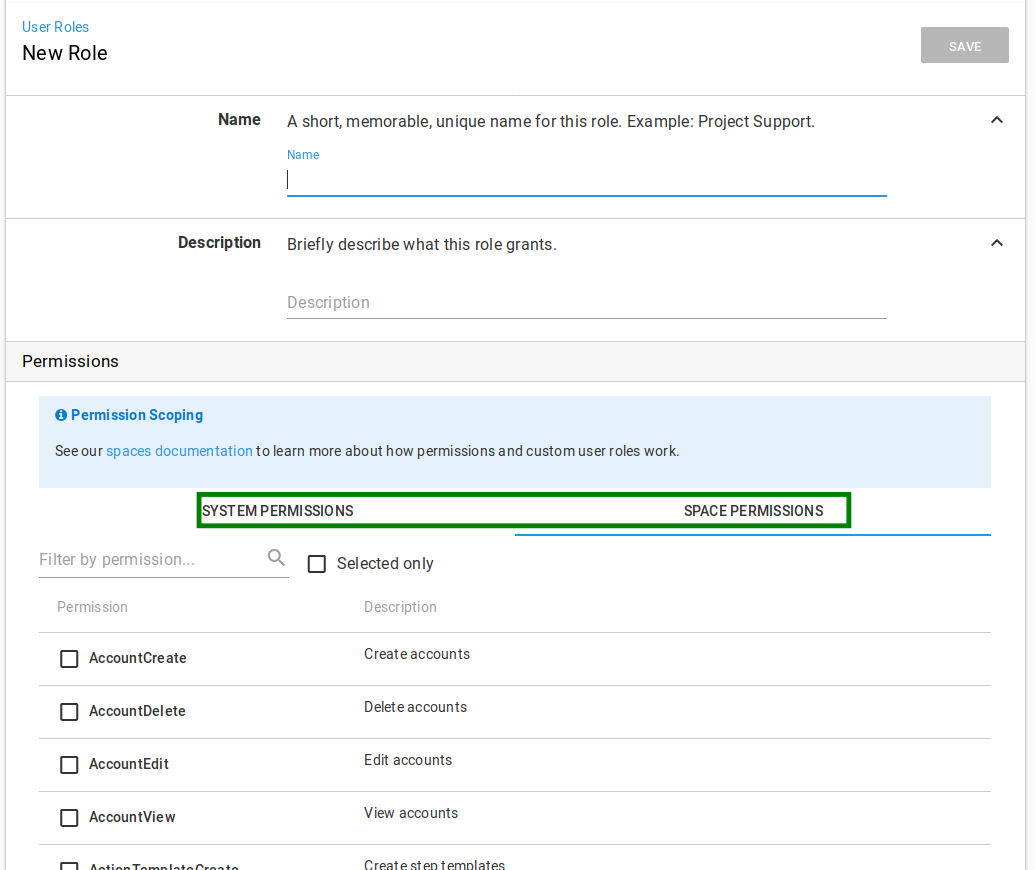
Once the custom role is saved, the new role will be available to be assigned to teams in Octopus. Some rules apply, depending on the mix of system or space level permissions you chose.
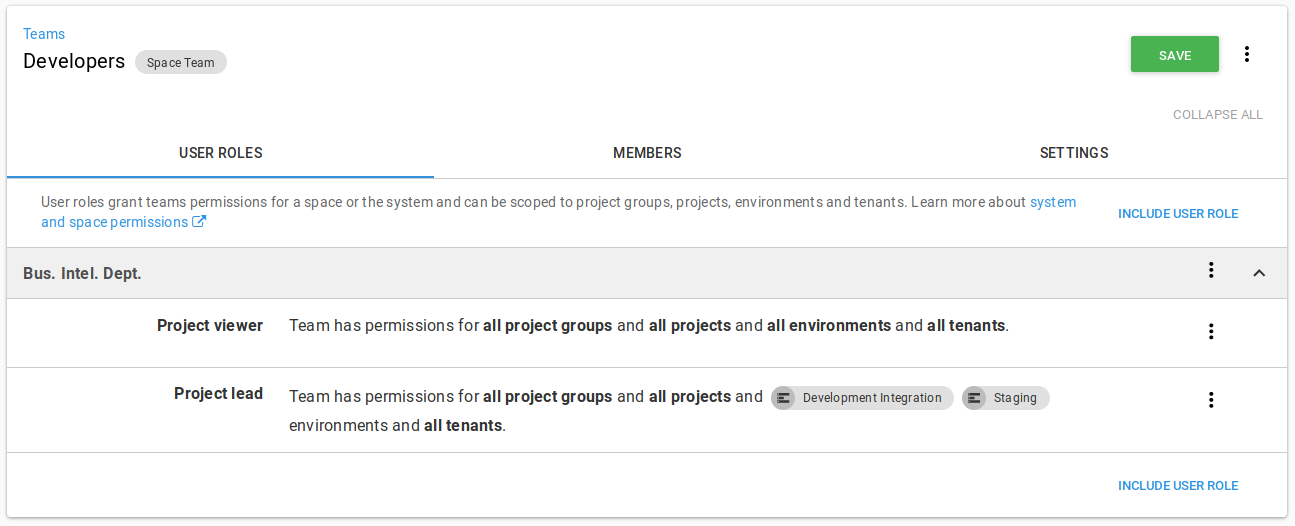
When applying roles to a team, you can optionally specify a scope for each role applied. This enables some complex scenarios, like granting a team different levels of access based on the environment they are authorized for.
Troubleshooting permissions
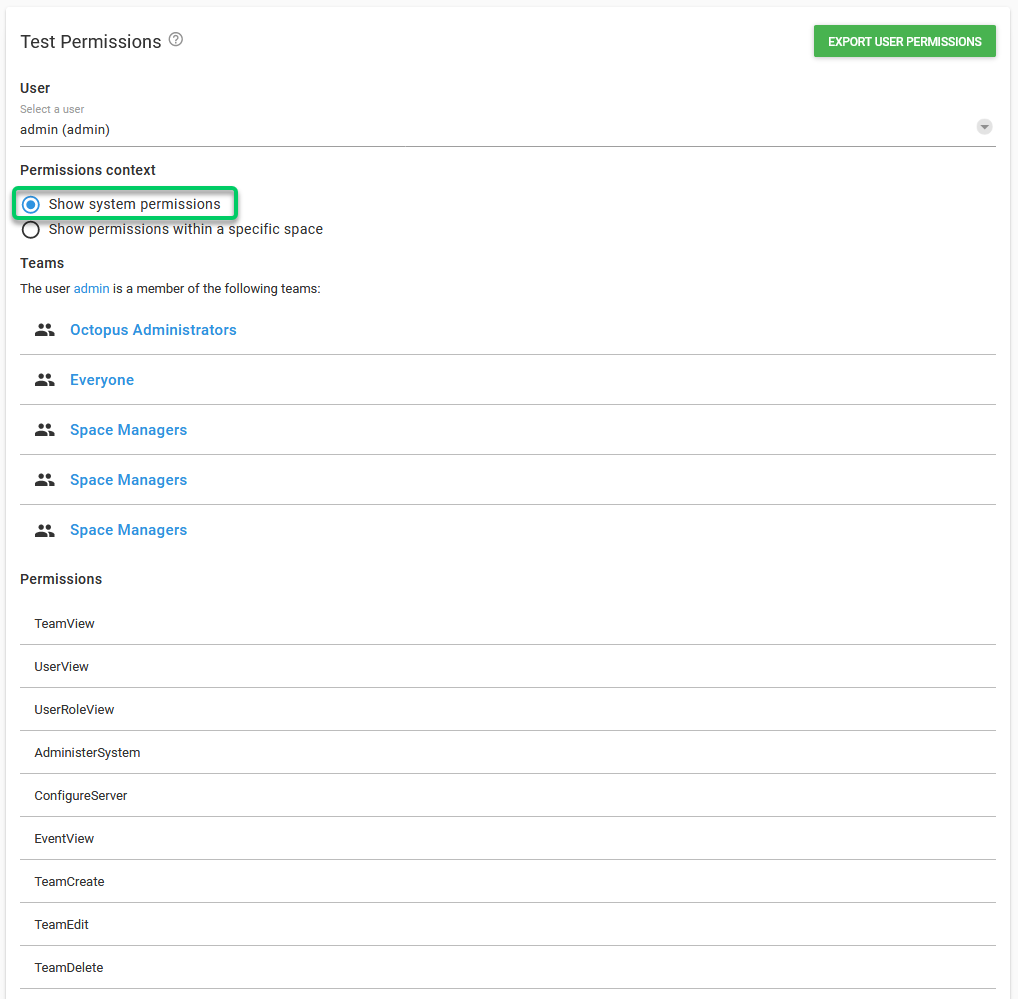
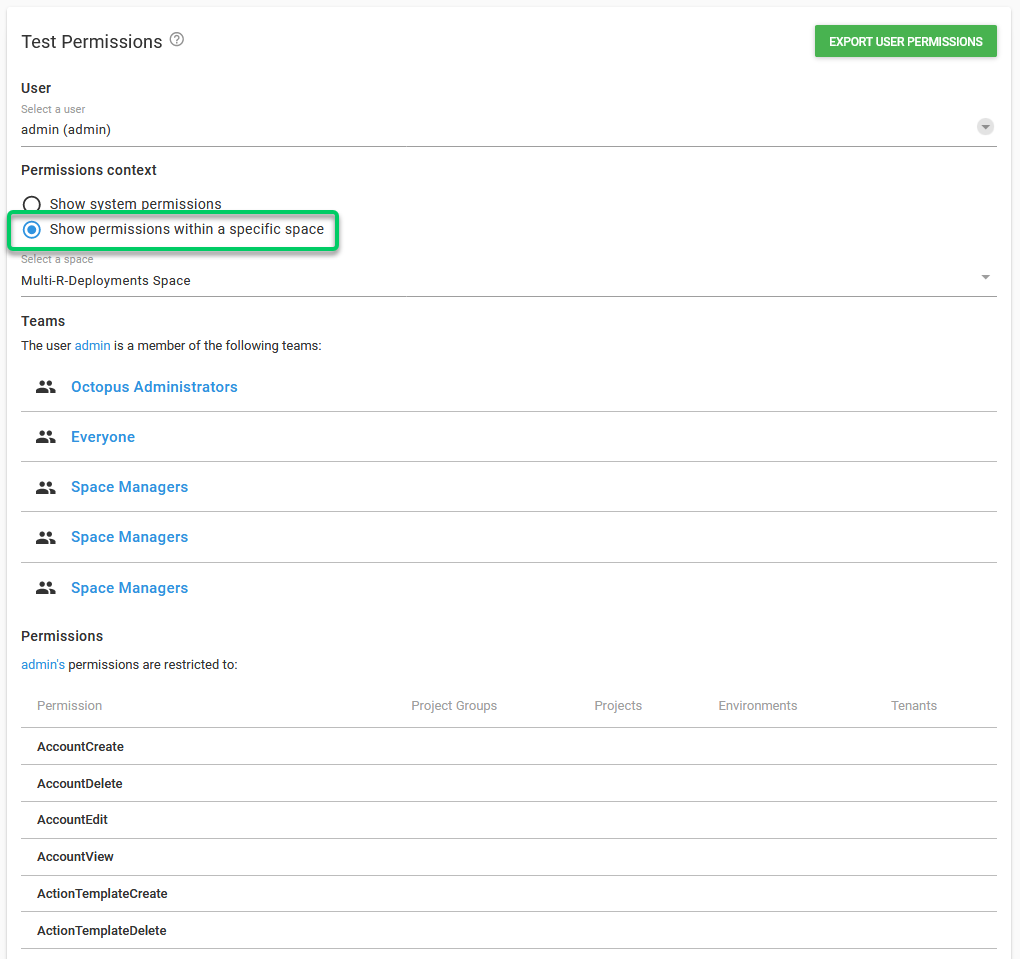
If for some reason a user has more/fewer permissions than they should, you can use the Test Permissions feature to get an easy to read list of all the permissions that a specific user has on the Octopus instance.
To test the permissions go to Configuration ➜ Test Permissions and select a user from the drop-down.
The results will show:
- The teams of which the user is a member of. There are two separate Permission context that you can check.
- Show System permissions will show System level permissions
- Show permissions within a specific space will show Space specific Permissions.
- A chart detailing each role and on which Environment/Project this permission can be executed. The chart can be exported to a CSV file by clicking the Export button. Once the file is downloaded it can viewed in browser using Online CSV Editor and Viewer.
If a user tries to perform an action without having enough permissions to do it, an error message will pop up showing which permissions the user is lacking, and which teams actually have these permissions.
